
Deploying UniFi Network Controller with Traefik: Decisions and Troubleshooting
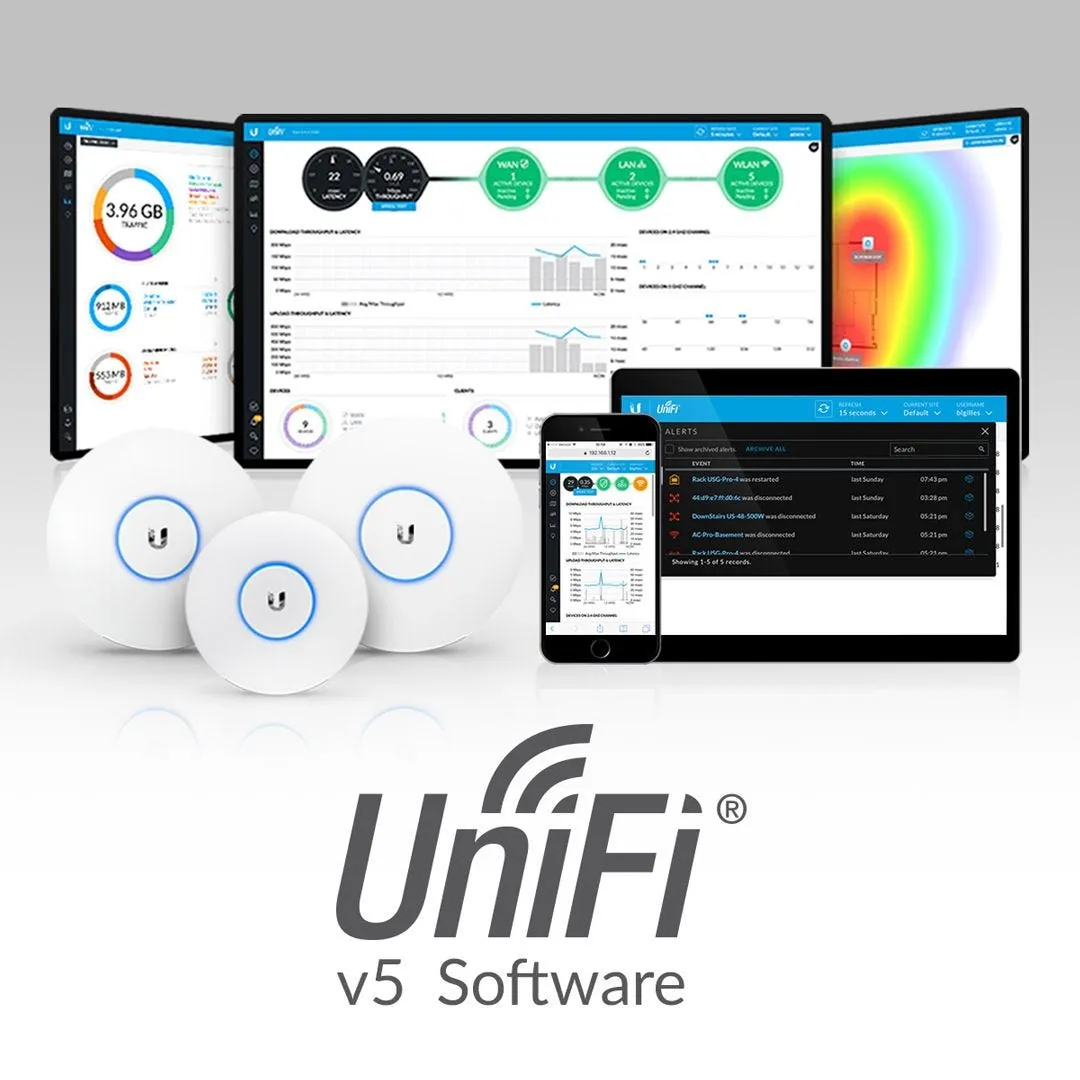
I needed to deploy UniFi Network Controller for managing access points and network devices. The deployment required balancing resource efficiency, infrastructure consistency, and the networking complexities of UniFi’s device communication protocols.
This is the decision analysis for choosing LXC+Docker over a VM, the hybrid networking approach needed for device adoption, and the troubleshooting issues that came up during deployment.
The deployment decision: LXC+Docker vs VM
I evaluated two primary options for running UniFi Controller on my Proxmox cluster.
Option 1: Dedicated Virtual Machine
Ubiquiti’s official recommendation for production environments. Strong isolation, simpler networking, but higher resource overhead. A VM typically uses ~80-90% native performance and needs 500MB+ just for the OS before running UniFi. This felt like overkill for a homelab environment.
Option 2: LXC Container with Docker (Chosen)
Resource efficient (~95-98% native performance), consistent with my existing infrastructure, and faster to deploy. The Prometheus-Grafana stack already successfully uses Docker-in-LXC on Proxmox, establishing a proven pattern. The trade-off is requiring a privileged container and less isolation than a VM, but this is acceptable for a homelab environment.
I chose LXC+Docker for infrastructure consistency and resource efficiency. The pattern was already proven with the monitoring stack, and better resource utilization matters for a homelab with limited capacity. The security isolation trade-off is acceptable when you’re not running production workloads.
The hybrid networking challenge
UniFi requires a hybrid networking approach that confused me initially. Not all ports can be proxied through Traefik, and understanding which ports need direct access is critical for device adoption.
Only the web UI port gets proxied:
- Port 8443/TCP: Web UI/API - Routed through Traefik for TLS termination and domain-based access
These ports must remain directly accessible:
- Port 8080/TCP: UniFi inform protocol - Devices communicate directly with the controller on this port
- Port 3478/UDP: STUN (NAT traversal) - Required for device communication behind NAT
Why only proxy port 8443? UniFi devices use the inform protocol (port 8080) for controller communication, and UDP port 3478 is required for STUN (NAT traversal). These cannot be effectively proxied through Traefik’s HTTP router. Port 10001/UDP is used for Layer 2 broadcast/multicast discovery, which doesn’t cross VLAN boundaries without multicast relay configuration. Since we’re using set-inform (Layer 3 adoption), only ports 8080 and 3478 are required. Only the web UI benefits from reverse proxy and TLS termination.
The hybrid approach ensures: Secure HTTPS access to the web UI via Traefik with wildcard certificate, while maintaining direct device communication on required ports for adoption and management. This took some experimentation to get right.
Configuration setup
The Docker Compose configuration follows standard patterns. LinuxServer.io provides a well-maintained UniFi image that handles most of the complexity.
Key configuration decisions:
- PUID/PGID: Use a standard user ID (e.g., 1000) rather than root (0). LinuxServer.io images are designed to run as non-root users for security
- MEM_LIMIT=1024: 1GB Java heap limit (adjustable based on device count)
- Healthcheck: Uses
/statusendpoint with self-signed certificate handling - Start period: 120s allows MongoDB initialization time before health checks begin
Traefik configuration requires handling UniFi’s self-signed certificate. UniFi uses self-signed certificates by default, so you need to configure Traefik to skip certificate verification for this specific backend. The correct approach is to define a ServersTransport with insecureSkipVerify: true and assign it only to the UniFi service, preserving SSL verification for all other backend services.
Critical UniFi configuration: After initial setup, you must configure the “Inform Host Override” or “Override Inform Host” setting. The location varies by UniFi version - check Settings → System → Advanced, or in newer versions (8.x/9.x) look for device settings or global settings options. Set it to your controller’s hostname (e.g., unifi.yourdomain.com). This tells devices where to find the controller without requiring changes to the container’s network binding configuration.
Troubleshooting issue 1: Firewall blocking device adoption
After factory resetting the access points, they never appeared in the controller for adoption. Curling the inform endpoint from my workstation returned HTTP 400 (expected response), which confirmed the controller was working. The problem was the router firewall.
The issue: VLAN 99 (management network where the APs live) could not reach the controller on VLAN 20 on the adoption ports. RouterOS was dropping every packet at the final forward-chain rule.
The fix: Added a Unifi_Controller address list entry pointing at the controller’s IP address in the router firewall configuration, then allowed VLAN99_Mgmt → Unifi_Controller for TCP 8080 and UDP 3478. Port 8080 is required for the inform protocol, and UDP 3478 handles STUN for NAT traversal. After redeploying the firewall playbook, devices could reach the controller and adoption worked immediately.
Lesson learned: When devices can’t reach the controller, check firewall rules at the router level. The inform protocol requires specific ports to be open between device and controller networks.
Troubleshooting issue 2: Docker bridge IP advertisement
Even with the firewall fixed, the controller dashboard kept reporting 172.18.0.3 as the server IP. That’s the Docker bridge IP inside the LXC container, so the APs were trying to contact an unroutable address and never reaching the controller.
The issue: UniFi was detecting and advertising the Docker bridge IP instead of the container’s actual IP address on the network. This meant devices received the wrong inform URL during adoption.
The fix: Configure the “Inform Host Override” or “Override Inform Host” setting in the UniFi web UI to your controller’s hostname. The exact location varies by UniFi version - check Settings → System → Advanced, or look for device/global settings in newer versions. This changes the advertised URL that devices use without modifying the container’s internal network binding behavior. After applying this setting and re-running set-inform http://<your-hostname>:8080/inform on the access points, the controller advertised the correct hostname and devices appeared immediately.
Lesson learned: When running UniFi in Docker, configure “Override Inform Host” to set the hostname devices use for inform. For the advertised IP to survive container restarts, also set system_ip in /config/data/system.properties (not the root /config/system.properties, which UniFi silently ignores). Use the container’s actual host IP, not a Docker bridge address or an address the container can’t bind.
Device adoption process
The adoption workflow requires SSH access to the devices. For devices previously adopted to offline controllers, you may need to physically factory reset them (hold reset button 10+ seconds) if SSH credentials are unknown.
Adoption steps:
- SSH to device:
ssh ubnt@<device-ip>(default password:ubnt) - Run:
set-inform http://<your-hostname>:8080/inform - Device should appear in UniFi UI as “Pending Adoption”
- Click Adopt in UI and monitor: Adopting → Provisioning → Connected
With the firewall rules and IP configuration in place, adoption works smoothly. The devices connect to the controller and start provisioning immediately after clicking adopt in the web UI.
What’s next
The controller is deployed and devices are adopted. Next steps include applying WiFi optimization settings from the existing bufferbloat optimization guide, configuring Proxmox replication for backup, and potentially adding to the HA group for automatic failover.
The hybrid networking approach has proven stable. The web UI is accessible via Traefik with HTTPS, while device communication happens directly on the required ports. This balance between security (HTTPS access) and functionality (device communication) works well for homelab deployments.
If you’re deploying UniFi Controller behind a reverse proxy, remember: Only proxy the web UI port. Device communication ports must remain directly accessible. Use per-service ServersTransport configuration for SSL certificate handling rather than disabling verification globally. Use non-root user IDs for container security (LinuxServer.io images handle this internally). And configure the “Override Inform Host” or “Inform Host Override” setting in the web UI. If you also need to lock down the advertised IP across restarts, set system_ip in /config/data/system.properties; the root /config/system.properties is silently ignored by UniFi.
If you’re looking to set up a UniFi network, I’ve been using the Ubiquiti UniFi U6 Access Point and the Ubiquiti UniFi AC Pro Access Point, both of which work well with the UniFi Controller setup described in this article.
Disclosure: This article contains affiliate links. If you purchase through these links, I may earn a commission at no extra cost to you.
Related reading

UniFi APs offline after restart: how the wrong config file path breaks everything
After a container restart, both APs went offline even though the controller was healthy. The cause: system_ip in /config/system.properties instead of /config/data/system.properties. UniFi silently ignores the root file and falls back to the Docker bridge IP.

Self-hosting Tailscale with Headscale
Replacing Tailscale's hosted coordination server with Headscale on a Proxmox LXC: Docker Compose setup, deprecated config keys that blocked startup, and connecting macOS, Linux, and iOS clients.

Replacing Firefly III with Actual Budget
Why I swapped out a finance app I never opened for one I actually use, and how the Docker-in-LXC deployment on Proxmox went.
Ready to Transform Your Career?
Let's work together to unlock your potential and achieve your professional goals.